hjp laptop wifi activation

Title: Cara Mengaktifkan Wifi di Laptop Windows ASUS LENOVO HP ACER AXIO TOSHIBA
Channel: Multi Talenta Tutorial
Cara Mengaktifkan Wifi di Laptop Windows ASUS LENOVO HP ACER AXIO TOSHIBA by Multi Talenta Tutorial
hp laptop wifi setup, hp laptop wifi setup windows 7, hp laptop activate wifi, hp laptop setup wifi turned off, how to activate wifi on laptop, why my laptop wifi is not turning on
Unlock Your HP Laptop's WiFi: The Secret Trick They DON'T Want You To Know!
Unleash Your HP Laptop's Hidden WiFi Potential: A Surprising Revelation!
Do you ever feel like your HP laptop's WiFi is holding back? Are you tired of frustrating connection drops and sluggish speeds? You're not alone! Many HP laptop users unknowingly limit their wireless experience. Therefore, you will discover how to unlock your laptop's true WiFi potential.
The Silent Struggle: Why Your WiFi Might Be Underperforming
Let's be frank. Your HP laptop, like any digital device, is a complex machine. Numerous factors can affect its WiFi performance. From software glitches to outdated drivers, the hurdles are many. Furthermore, settings can be subtly skewed, hindering your connection. Perhaps you've overlooked simple solutions. Maybe you are unaware of the full capabilities of your hardware.
The "Secret" Unveiled: A Hidden Configuration
Here’s a little secret the tech giants often keep hush-hush. Your HP has a hidden setting. This setting can drastically improve WiFi performance. It’s not a magic bullet. It can be a significant game-changer. I’ll walk you through the steps to access and adjust it.
Step-by-Step Guide: Unlocking Your WiFi's Power
Prepare to take control of your internet experience. Follow these steps carefully. They will allow optimization of your HP laptop's wireless connectivity.
- Accessing the Device Manager: Start by searching for "Device Manager" in your Windows search bar. Click to open it. This is your control center for hardware.
- Navigating to Network Adapters: Within the Device Manager window, find and expand the "Network adapters" section. This is where your WiFi card resides.
- Identifying Your Wireless Adapter: Look for your specific wireless adapter. It often includes "Wireless" or "WiFi" in its name.
- Opening Properties: Right-click on your wireless adapter and select "Properties." A new window opens with configuration options.
- The Advanced Tab: Your Hidden Treasure: Click on the "Advanced" tab. This is where the magic happens. Several settings control your WiFi.
- Finding the Right Setting: Scroll through the list of settings. Look for one labeled "Wireless Mode" or something similar. The exact wording may vary.
- Changing the Wireless Mode: The default setting is often set. Change it to the latest standard. Select the option that best matches your router’s capabilities. For example, if your router supports 802.11ac, choose that.
- Applying the Changes: Click "OK" to save your changes. Your computer will likely need to reconnect to your WiFi.
Beyond the Basics: Further Optimizations
This isn't the only way. However, it is an essential first step. Once you have a solid foundation, consider some additional tweaks.
- Driver Updates: Regularly update your WiFi adapter drivers. Manufacturers release updates to improve performance.
- Router Placement: Place your router in a central location. This maximizes signal coverage.
- Channel Selection: Your router broadcasts over a specific channel. Experiment with different channels to find the best one.
- Security Settings: Secure your WiFi network with a strong password. This prevents unauthorized users from slowing your connection.
The Result: Experience the Difference
After making these adjustments, the improvement should be immediately noticeable. You should see quicker loading times. Your overall browsing experience will become smoother, without the agonizing delays.
Troubleshooting Common Issues
Even with these steps, issues can occur. Here's how to troubleshoot common problems.
- Connection Drops: If you experience frequent drops, check your router's firmware. Also, check for interference from other devices.
- Slow Speeds: Run a speed test to measure your internet speed. Compare the results with your internet plan.
- Unable to Connect: Ensure your WiFi password is correct. Restart your router and laptop.
Why This Matters: Taking Control of Your Digital Life
In today's connected world, a reliable WiFi connection is crucial. It is essential for work. It's vital for entertainment. This simple trick gives you control. This frees you from frustrating connectivity issues. You can utilize the full potential of your HP laptop.
Final Thoughts: Empowering Your HP Laptop
Don't settle for a mediocre WiFi experience. Take the initiative. Your HP laptop is capable of much more. As such, you can now unlock its full potential with these simple steps. Now is the time to take action, improve your connection, and enjoy seamless wireless connectivity!
HP Laptop WiFi Nightmare? FIX It NOW!Unlock Your HP Laptop's WiFi: The Secret Trick They DON'T Want You To Know!
Hey there, tech explorers! Ever felt like your HP laptop's Wi-Fi is playing hide-and-seek? One minute you're cruising the internet like a digital cheetah, the next you're stuck buffering, practically begging for the Wi-Fi gods to show mercy. Trust me, we’ve all been there. But what if I told you there’s a secret, a hidden trick, that could turbocharge your HP laptop’s Wi-Fi and banish those frustrating connection woes? Buckle up, buttercups, because we're about to dive deep into the world of Wi-Fi wizardry, and you're about to become the master of your own digital domain!
The WiFi Woes: Why Is My HP Laptop So Slow?
Let’s be honest, a slow Wi-Fi connection is like a grumpy housemate – always making life harder. There are countless reasons why this might be happening. It could be your router, the distance from your router, interference from other electronic devices, or even just the sheer number of devices trying to hog the bandwidth at once. But often, the problem isn't external; it's with your laptop's settings. Think of it like this: your laptop has all the ingredients to bake a delicious Wi-Fi cake, but someone’s forgotten the secret recipe! More specifically, the drivers and settings often need a little tweaking.
Decoding the Driver Drama: The Unsung Hero of Your Connection
The unsung hero of your Wi-Fi experience? The driver! It’s like the conductor of an orchestra, ensuring all the components of your Wi-Fi card work in harmony. If the driver is outdated, corrupted, or simply not optimized, your connection will suffer. It's like trying to drive a Ferrari with a flat tire – you're just not going anywhere fast.
How to Update Your Wi-Fi Driver (The Easy Peasy Lemon Squeezy Method!)
Fear not, fixing your driver is usually a walk in the park! Here’s how we can make sure everything's up to speed:
- Step 1: The Device Manager Detective. Hit that Windows search bar (the magnifying glass icon) and type "Device Manager." Click on it to open the window.
- Step 2: Network Adapters Unveiled. In the Device Manager, look for "Network adapters." Click the little arrow next to it to expand the list. You'll see your Wi-Fi adapter listed here (it’ll often have "Wireless" or "Wi-Fi" in the name).
- Step 3: Right-Click Revolution. Right-click on your Wi-Fi adapter’s name.
- Step 4: Update Driver Magic. Select "Update driver."
- Step 5: Search Automatically. Choose "Search automatically for drivers." Windows will then try to find the newest driver for you.
- Step 6: Restart and Rejoice! If Windows finds a new driver, install it, and then restart your laptop. Hopefully, you will notice a significant improvement!
The Hidden Wi-Fi Settings: The Tweaks You Didn't Know You Needed
Okay, so you've updated your driver, but the Wi-Fi is still a bit sluggish? Don’t worry; we're not done yet. There are some hidden settings within your Wi-Fi adapter’s properties that can make a massive difference.
Accessing the Secret Compartment: Diving into Adapter Properties
Let's go back to the Device Manager (as we did previously). Right-click on your Wi-Fi adapter again, but this time, choose "Properties." Within this window, you'll find the secret settings treasure chest.
The Advanced Tab: Unlocking Performance with Configuration
In the Properties window, click on the "Advanced" tab. This is where the real magic happens. You'll see a long list of configurable settings. Don't panic! We'll focus on the key ones. (Don't worry, for the most part the default settings are a perfectly good start.) These are the settings that can either make the connection fast like a bullet train or slow like molasses in January.
- 802.11n/ac Wireless Mode: This setting determines the Wi-Fi standard your laptop uses. Ensure it's set to the most advanced standard supported by your router (usually "802.11ac" or "802.11ax"). It's like choosing the fastest gear on your bike.
- Wireless Mode: Ensure your laptop defaults to "Auto" or the most recent standard supported by your router. This helps to ensure the best mode for your connection is always in operation.
- Transmit Power: Set this to "Highest." This is like turning up the volume on your Wi-Fi signal – the further the connection travel, the better.
- Roaming Aggressiveness: Experiment with this setting. If you often move around and your Wi-Fi drops, set it to "Medium." If you want the strongest, most stable connection you can get, set it at maximum.
- Preferred Band: Set to "Prefer 5 GHz" (if your router supports it). 5 GHz is usually less crowded than the 2.4 GHz band, meaning faster speeds and less interference.
Reboot and Revive: The Final Polish
After changing these settings, click "OK" and restart your laptop. This allows the new settings to take effect. Voila! Your HP laptop’s Wi-Fi should be singing a happier tune.
Troubleshooting the Troubles: When Things Still Go Wrong
Sometimes, even after all these tweaks, your Wi-Fi might still be giving you grief. Don't throw your laptop out the window just yet! Here are a couple of troubleshooting tips:
- Router Reboot Ritual: Restart your router. It’s the classic solution for a reason! This forces it to refresh its connection and often resolves minor issues.
- Check the Distance: Are you far from your router? Thick walls and other obstacles can weaken the Wi-Fi signal. Try moving closer.
- Test Other Devices: Does the Wi-Fi work well on other devices? If so, the problem is likely specific to your laptop.
- Run the troubleshooter: Windows has a built-in Wi-Fi troubleshooter. Just type "troubleshoot" in the search bar and select "Network Adapter."
Security Matters: Protecting Your Digital Realm
While we're talking Wi-Fi, let's touch on security. Make sure your Wi-Fi network is protected with a strong password, ideally using WPA2 or WPA3 encryption. Think of it as the castle walls protecting your digital kingdom.
The Secret They Don't Want You To Know (Recap!)
So, what's the secret the tech giants might not openly share? It's not some top-secret code, but rather a combination of driver updates, optimized settings, and some basic troubleshooting steps. By taking control of these elements, you can dramatically improve your HP laptop’s Wi-Fi performance and reclaim your online experience.
The Power of Knowledge: Why This Matters to You
Knowing these tricks puts you in the driver's seat. No longer will you be at the mercy of a slow internet connection. You'll be the Wi-Fi guru, the connection commander, the master of your digital domain.
Your WiFi, Your Way: Personalizing Your Experience
The beauty of these tweaks is that they're customizable. Experiment with the settings to find what works best for your specific setup and environment. It’s your Wi-Fi, your way!
Embracing the Future: Staying Ahead of the Curve
The world of Wi-Fi is constantly evolving. New standards, new technologies – it's a never-ending adventure. By staying informed and keeping your skills sharp, you’ll always be one step ahead of the curve.
Wrapping Up: Your WiFi Freedom Begins Now!
And there you have it! The secret trick to unlocking your HP laptop's Wi-Fi potential. Armed with this knowledge, you're ready to conquer slow connections and embrace the world of seamless streaming, browsing, and gaming. Now, go forth and connect! We hope this guide has equipped you with the knowledge to enhance your digital experience, and hopefully, you are enjoying your increased wireless speed.
FAQs: Your Burning Questions Answered!
1. Will these tricks work on any HP laptop?
Yes! The steps we've outlined generally apply to most HP laptop models running Windows, even if some settings might have slightly different names or locations.
2. What if my Wi-Fi adapter isn't listed in Device Manager?
If your Wi-Fi adapter isn't showing up, it could mean it's disabled or has a hardware problem. In Device Manager, check if it's been disabled (right-click and select "enable"). If it's still missing, you might need to contact HP support or consider professional repair.
3. What's the difference between 2.4 GHz and 5 GHz Wi-Fi?
2.4 GHz Wi-Fi offers a wider range but tends to be slower and more prone to interference. 5 GHz, on the other hand, offers faster speeds but has a shorter range and is more susceptible to obstructions.
4. Can I damage my laptop by tweaking these settings?
No! The settings we've discussed are generally safe
HP Wifi Button DEAD? Fix It NOW! (Easy Steps)Cara atasi WiFi tidak bisa connect di laptop not connected
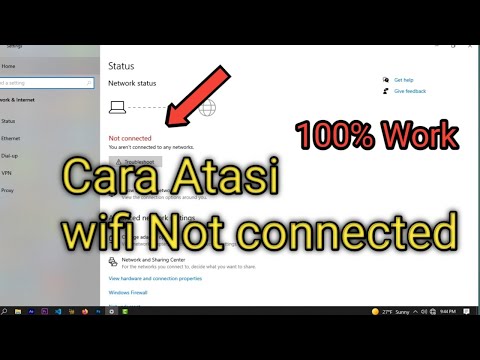
By ijal tutorial Cara atasi WiFi tidak bisa connect di laptop not connected by ijal tutorial
cara mengatasi wifi tidak muncul di laptop logo wifi tidak ada

By ijal tutorial cara mengatasi wifi tidak muncul di laptop logo wifi tidak ada by ijal tutorial
How to Use Sim card in HP Laptop Elitebook 850 G6 How to Use Sim card in any Laptop

By TechyTonics How to Use Sim card in HP Laptop Elitebook 850 G6 How to Use Sim card in any Laptop by TechyTonics

Title: solusi laptop yang gak bisa konek wifi
Channel: HITS MUSIK
solusi laptop yang gak bisa konek wifi by HITS MUSIK
Laptop Wifi Hotspot
Unlock Your HP Laptop's WiFi: The Secret Trick They DON'T Want You To Know!
We understand how frustrating it can be when your HP laptop stubbornly refuses to connect to the internet. That blinking WiFi icon, the endless 'connecting…' message – it can feel like an eternity in a digital world. You've likely clicked through countless forums, tried the usual troubleshooting steps, and perhaps even considered surrendering to the dreaded call to technical support. But before you go to extremes, we want to share a hidden gem, a secret technique, that often unlocks your HP laptop's WiFi capabilities when all else has failed. This isn't a miracle cure, but rather a strategic approach that considers the nuances of HP laptop hardware and software. Prepare to discover a straightforward method that could save you hours of frustration.
Understanding the Root of the Problem: Beyond the Obvious
Before diving into the solution, let's briefly address the common culprits. It's tempting to immediately blame the WiFi adapter or the router, but the issue often lies deeper within your HP laptop's operating system and its interaction with the hardware. Think of your laptop as a complex orchestra, and the WiFi adapter as a musician. The music (internet connectivity) won't play if the conductor (the operating system and its settings) isn't properly coordinating the instruments. This involves drivers, power settings, network configuration, and even background processes that can unintentionally disrupt the WiFi connection.
The Secret Weapon: Re-Engaging the Wireless Adapter at a Kernel Level
The secret technique we're about to unveil involves a targeted approach to the wireless adapter. While the standard "disable and enable" functions may work in simple cases, this method penetrates deeper, restarting the adapter at a foundational level. This can be particularly effective when the adapter is experiencing a software conflict or a minor glitch that's preventing it from fully initializing and connecting.
Here’s a step-by-step guide:
Accessing the Device Manager: The Device Manager is the central hub for managing all hardware components on your HP laptop. To open it, press the Windows key and the 'R' key simultaneously to open the Run dialog box. Type
devmgmt.mscand press Enter. Alternatively, you can right-click the Windows Start button and select "Device Manager" from the menu.Locating the Network Adapters: In the Device Manager window, you'll see a list of hardware categories. Expand the "Network adapters" section. This is where you'll find your wireless adapter, likely labeled as something like "Realtek Wireless LAN Adapter," "Intel Dual Band Wireless-AC," or a similar description, specific to your HP laptop model.
The Strategic Disablement and Enablement: Right-click on your wireless adapter and select "Disable device." A warning prompt will appear, confirming that you want to disable the device. Click "Yes." This action effectively shuts down the adapter.
The Crucial Restart: Now, right-click on the same wireless adapter again. This time, select "Enable device." This reactivates the adapter.
The Power Cycle (Optional, but Recommended): After enabling the device, close the Device Manager, and now, it is recommended to restart your HP laptop. This allows the operating system to fully recognize the re-enabled adapter and ensure a clean start.
Why This Technique Works: The Underlying Logic
This seemingly simple process is surprisingly effective because it bypasses potential software conflicts and minor glitches that can plague the wireless adapter:
- Driver Reset: Disabling and then enabling the device forces the operating system to reload the drivers. This can resolve corrupted driver files or address compatibility issues that might be hindering the connection.
- Resource Reallocation: Sometimes, the wireless adapter might not be receiving the necessary resources (like memory or CPU cycles) to function correctly. Disabling and enabling can prompt the operating system to reallocate these resources, prioritizing the adapter's functionality.
- Conflict Resolution: Other software, background processes, or even other hardware components can occasionally interfere with the wireless adapter. This method provides a clean re-initialization, allowing the adapter to function in a less cluttered environment.
Beyond the Basic Steps: Advanced Troubleshooting Considerations
In some cases, further troubleshooting may be needed, even after employing the primary technique. Consider these advanced measures:
- Driver Updates: After enabling the adapter, check if the driver is up-to-date. Right-click on the wireless adapter in the Device Manager, select "Update driver," and choose "Search automatically for drivers." If a newer driver is available, install it.
- Roll Back Driver: If the problem occurred after a recent driver update, consider rolling back the driver to a previous version. In the Device Manager, right-click on the wireless adapter, select "Properties," and go to the "Driver" tab. If the "Roll Back Driver" option is available, click it.
- Network Reset: If you're still facing issues, you can try resetting your network settings. In Windows 10 and 11, go to Settings > Network & Internet > Network reset. Be aware that this will reset all your network adapters, including Ethernet, and you will need to re-enter your WiFi password.
- Hardware Diagnostics: If none of the previous steps resolve the issue, the problem might be hardware-related. Run the HP Support Assistant (typically pre-installed on HP laptops) to diagnose hardware issues with your wireless adapter. Alternatively, check the BIOS settings for the wireless adapter and ensure that it is not disabled.
- Consider External Factors: It's also essential to rule out external factors. Ensure your router is functioning correctly, and there are no local network issues or signal interference.
Understanding Your HP Laptop's Specifics: Tailoring the Method
HP laptops come in various models, each with its unique hardware configuration. While the core technique remains consistent, understanding your specific model's details can refine your approach:
- Consult the HP Support Website: Visit the HP support website (support.hp.com) and enter your laptop's model number to access detailed information, including specific driver versions and potential hardware limitations.
- Check the Hardware Information: Within the Device Manager, under "Network adapters," examine the precise name of your wireless adapter. This information will help you find the right drivers or troubleshooting guides.
- BIOS Settings: Advanced users may wish to inspect BIOS settings to ensure the wireless adapter is enabled and not accidentally disabled. Accessing the BIOS varies by model; consult your HP laptop's manual for instructions.
Preventative Measures: Maintaining a Stable Connection
Once you've successfully re-established your WiFi connection, consider the following preventative measures to prevent future issues:
- Regular Driver Updates: Keep your drivers up-to-date, but exercise caution when updating. If a driver update causes connection problems, revert to the previous version.
- Power Management Settings: Adjust your power settings to ensure your wireless adapter isn't being disabled to save power. In Windows, go to Settings > System > Power & sleep and adjust your power plan settings.
- Router Firmware Updates: Check for firmware updates for your WiFi router. Updated firmware can improve stability and compatibility.
- Monitor Your Connection: Use a network monitoring tool to track your WiFi connection's stability and identify any potential issues.
Unlocking a World of Connectivity
By applying this strategic technique, you equip yourself with a valuable skill to combat persistent WiFi issues on your HP laptop. Don't let connectivity problems disrupt your productivity or enjoyment. When you find yourself staring at that frustrating 'no connection' icon, remember this method. This empowers you to regain control and unlock the wireless capabilities of your HP laptop. Navigate the digital world and experience seamless connectivity once more.
