i can t find wifi on my laptop
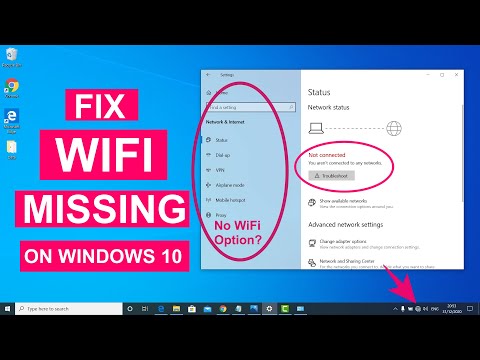
Title: Fix WiFi Not Showing in Settings On Windows 10 Fix Missing WiFi 2025
Channel: Sandeep Singh
Fix WiFi Not Showing in Settings On Windows 10 Fix Missing WiFi 2025 by Sandeep Singh
i can't find wifi on my laptop, i can't find wifi on my laptop windows 11, i can't find wifi on my laptop windows 10, i can t get wifi on my laptop, i can t find wifi icon on my laptop, i can t find wifi option on my laptop, i can t find wifi on my hp laptop, i can t find any wifi on my laptop, i can t get internet on my laptop, i can t find my wifi network on my laptop
Laptop WiFi Vanished? Find It NOW!
Laptop WiFi Woes? Your Rescue Mission Begins Now!
Have you ever stared blankly at your laptop screen? The WiFi icon mocks you, a cruel reminder of your internet absence. Suddenly, your online world vanishes, leaving you stranded. Frustration mounts quickly, doesn't it? But don’t despair! We'll navigate this digital desert together. Let's get your WiFi back online, pronto!
Troubleshooting Time: Unveiling the Mystery
Firstly, breathe. Panicking won't reconnect you. Instead, let's approach this like a seasoned detective. We need to methodically uncover what happened. Think of your laptop as a complex puzzle. One missing piece disables the whole picture. Thus, each step helps us solve the mystery.
Check the Obvious: The Simple Solutions First
Before diving into tech jargon, consider the basics. For instance, did you accidentally turn off your WiFi? The WiFi switch, often found above the keyboard, is the culprit. Make sure it's switched on. Similarly, check the physical connection. Is your router powered on? Are the cables plugged in correctly? Sometimes, the easiest fixes are the most overlooked.
Restarting Your Laptop: A Digital Reset
Restarting your laptop does wonders. It may seem simplistic, but it often works. Essentially, it clears the digital cobwebs. Additionally, a fresh start can resolve temporary glitches. Therefore, shut down completely. Then, power it back up. See if your WiFi miraculously reappears.
Network Adapter Shenanigans: Exploring Deeper
If restarting didn't work, we need to investigate your network adapter. This is your laptop's translator. It speaks the language of WiFi. First, access your device manager. Search for it in your Windows search bar. Now, look for "Network Adapters." Expand this section. Do you see your WiFi adapter listed? If it has a yellow exclamation point or a red X, it means trouble.
Update the Driver: The Key to Compatibility
Outdated drivers can also cause connectivity issues. Think of drivers as instructions. They tell your hardware how to function. Therefore, an outdated driver can be a communication breakdown. Right-click on your WiFi adapter. Select "Update driver." Choose "Search automatically for drivers." Windows will hopefully find the latest version. Subsequently, give it time to install. Restart your laptop after.
Run the Troubleshooter: Let Windows Lend a Hand
Windows includes a built-in troubleshooter. It’s a handy tool for these situations. It automatically detects and attempts to fix problems. Simply type "troubleshoot settings" into the Windows search bar. Then, you'll find a section for "Network Adapter." Run the troubleshooter. See if it identifies and resolves any issues.
Router Reboot: A Fresh Start for Your Network
Sometimes, the problem lies with your router, not your laptop. Your router is the gateway to the internet. Think of it like the control tower. The solution? Reboot your router! Unplug it from the power source. Wait for about 30 seconds. Plug it back in. Allow it to fully boot up. Consequently, try connecting to your WiFi again.
Checking Firewall Settings: Allowing the Connection
Occasionally, your firewall might be blocking the connection. The firewall is your laptop's security guard. It prevents unauthorized access. Therefore, it can sometimes block your WiFi. Access your firewall settings. Check if your WiFi adapter is allowed. Ensure that your network is listed as a trusted network.
Contacting Your Internet Service Provider (ISP): When In Doubt
If you’ve tried everything, it’s time to call in the professionals. Contact your internet service provider. They can diagnose issues on their end. Furthermore, they can guide you through further troubleshooting steps. Ultimately, they can resolve more complex problems.
Preventative Measures: Keeping Your WiFi Strong
Once you’ve reconnected, think about prevention. Therefore, keep your drivers updated. Run regular virus and malware scans. Also, secure your network with a strong password. Finally, take care of your router. Place it in an open space. Avoid physical obstructions.
Conclusion: Back to the Digital World!
Losing your WiFi can be incredibly frustrating. Nevertheless, it's usually fixable. By following these steps, you can likely restore your connection. Now, go forth and conquer the digital world! You've got this! Remember, persistence and a little bit of troubleshooting are your allies. Happy surfing!
Laptop WiFi Dead? Fix It NOW! (Easy Steps Inside!)Laptop WiFi Vanished? Find It NOW!
We've all been there. You're in the middle of an important video call, desperately trying to finish a crucial assignment, or just about to binge-watch your favorite show, and BAM! Your laptop's Wi-Fi decides to take a vacation. The little Wi-Fi icon in the system tray – that comforting symbol of connectivity – is suddenly replaced by a haunting "no internet" message or, even worse, completely disappears. It's like your digital lifeline has been severed. But don’t panic! We're going to navigate this together, and by the end of this guide, you’ll be equipped to banish that Wi-Fi ghost and get back online in no time.
1. The Phantom Connection: Recognizing the Signs
First things first, let's identify the crime scene. What exactly is happening with your Wi-Fi? Is the Wi-Fi icon completely gone? Does it show a cross or an exclamation mark? Are you getting the dreaded "no internet access" warning? These clues tell a story. A missing icon suggests a deeper problem – the Wi-Fi adapter itself might be disabled or experiencing a driver issue. An exclamation mark often points to a network problem – perhaps your router isn't communicating. This is your digital detective work; it sets the stage for our troubleshooting adventure.
2. Restarting the Obvious: The Power of the Reboot
Ah, the classic IT fix! Before you even think about tearing your hair out, let's start with the simplest solution: a good old-fashioned reboot. Restart your laptop. Restart your router. Why? Well, sometimes, it's like a digital reset button. Both devices can get bogged down with temporary errors, and a simple reset can clear them out. Think of it as a digital defrag – clearing out the clutter that’s blocking the signal.
3. Unveiling the Hardware: Is Your Wi-Fi Adapter Enabled?
Alright, if a reboot didn’t do the trick, it’s time to check if your Wi-Fi adapter is even turned on. It's like forgetting to plug in your toaster – no power, no breakfast.
- Windows: Go to the "Network Connections" settings (search for it in the Start menu). Look for your Wi-Fi adapter. Is it enabled? If it’s disabled, right-click and choose "Enable."
- Mac: Go to System Preferences, then Network. Make sure Wi-Fi is turned on.
It might seem basic, but you'd be surprised how often this is the culprit!
4. Router Rendezvous: Checking Your Internet Source
Now it’s time to check the source! Is your router working properly? Are other devices connected to the internet? Sometimes the problem isn’t your laptop at all, but the internet connection itself.
- Lights on the Router: Check the lights on your router. Are they all blinking normally? A solid or blinking "internet" light indicates a problem with the connection to your internet service provider.
- Other Devices: Try connecting another device (phone, tablet, another laptop) to your Wi-Fi. If they also can't connect, the problem isn't your laptop.
If the router is the issue, you might have to restart it, contact your ISP, or, heaven forbid, get a new one.
5. Delving into Device Manager (Windows Only): The Driver Dilemma
For Windows users, let’s dive into the often-overlooked Device Manager. Imagine this as the control panel of your computer’s hardware. Here's how to find it: search for "Device Manager" in the Start menu. Inside Device Manager, expand the "Network adapters" section. Look for your Wi-Fi adapter (it'll be something like "Wireless Network Adapter").
- Yellow Exclamation Mark: If there's a yellow exclamation mark next to it, it means there's a driver issue. You'll need to update the driver.
- Updating Drivers: Right-click on your Wi-Fi adapter and select "Update driver." Windows will typically search for and install the latest drivers automatically.
Drivers are like the instruction manuals for your hardware. Old or corrupted drivers can cause all sorts of problems.
6. The Air Traffic Control: Airplane Mode
A seemingly innocent toggle, airplane mode, can be the sneaky culprit behind your vanishing Wi-Fi. Ensure that Airplane Mode is off. It disables all wireless connections, including Wi-Fi.
- Windows: Click the Wi-Fi icon in the system tray. Airplane mode should be off.
- Mac: Click the Wi-Fi symbol in the menu bar. Airplane Mode toggling on and off.
7. Network Troubleshooters: Letting Windows Help You Out
Windows has built-in troubleshooters designed to help diagnose and fix network problems. Let's give it a shot.
- Navigate to Settings > Network & Internet > Status. Look for "Network troubleshooter"
- Run the Troubleshooter: Follow the prompts. Windows will perform some checks and, hopefully, offer a solution.
Think of it as a digital doctor, diagnosing the illness and prescribing the medicine.
8. Unplugging and Replugging: Simple But Effective
Sounds too basic, right? But sometimes, a physical jiggle can make a world of difference. Disconnect your laptop from its power source (if it’s plugged in) and then remove the battery. Give it a few minutes, then reassemble and restart. Removing the battery can sometimes refresh the connection.
9. Firewall Follies: Is Your Security Blocking You?
Your firewall is like a security guard, protecting your laptop from unwanted traffic. But sometimes, it can be a little overzealous. It might be blocking your Wi-Fi connection. Check your firewall settings (in Windows Security or your third-party security software). Ensure that your Wi-Fi network is allowed to communicate.
10. The Password Paradox: Double-Checking Your Key
It might seem obvious, but it’s easy to make a typo. Double-check the Wi-Fi password you’re entering. Case matters! Make sure you have the correct password.
11. Reinstalling Network Drivers: The Nuclear Option
Sometimes, a driver is so messed up that an update isn’t enough. You might need to reinstall the driver. This is a slightly more advanced step, but it can often resolve stubborn issues.
- Uninstall the Driver: In Device Manager (see step 5), right-click on your Wi-Fi adapter and select "Uninstall device."
- Restart Your Computer: Windows should automatically reinstall the driver upon restart. If not, you can manually download the latest driver from your laptop manufacturer’s website.
This is like wiping the slate clean and starting over.
12. System Restore: Rolling Back Time
If you recently installed new software or made changes to your system, it might have caused the Wi-Fi problem. System Restore allows you to revert your computer to a previous state (a "restore point") when things were working correctly.
- Search for "Create a restore point" in the Start menu.
- Follow the prompts to select a restore point. Choose a point before you started having Wi-Fi issues.
This is like a digital time machine, going back to a point where things were running smoothly.
13. The Ultimate Test: Connecting to a Different Network
If all else fails, try connecting to a different Wi-Fi network (a neighbor's, a public hotspot, etc.). If you can connect to another network, the problem is most likely with your home network (router, internet connection). If you still can't connect, the problem is probably with your laptop's Wi-Fi adapter itself.
14. Contacting the Professionals: When You Need Backup
If you’ve tried everything and still can’t connect, it might be time to call in the experts. Contact your internet service provider (ISP) to troubleshoot your router. Or, if the problem seems to be your laptop's Wi-Fi, contact a computer repair shop for professional assistance.
15. Prevention is Key: A Checklist for Future Harmony
Now that you've fixed your Wi-Fi issue, let’s ensure it doesn’t happen again.
- Keep your drivers updated. Regularly check for driver updates (through Windows Update or your laptop manufacturer’s website).
- Protect your network. Use a strong password for your Wi-Fi.
- Monitor your router. Regularly check your router’s status and firmware.
- Back up your data. In case of a more serious hardware issue, always back up your important files.
Conclusion: Back in the Digital Saddle!
And there you have it! We’ve navigated the treacherous waters of vanished Wi-Fi together. I hope this guide has helped you regain your connection and get back to doing what you love online. Remember, these troubleshooting steps are like a toolkit. Not every tool will be needed for every problem, but working through them systematically will usually lead to a solution. Now go forth and conquer the digital world! And if things go wrong, just remember, we’ve got your back.
Frequently Asked Questions (FAQs)
1. My Wi-Fi icon is missing entirely. What should I do?
Laptop WiFi Hotspot: Unleash Your Phone's Freedom!The missing Wi-Fi icon usually signifies a problem with the Wi
How to Fix WiFi Not Showing Up on Windows 10 - Howtosolveit
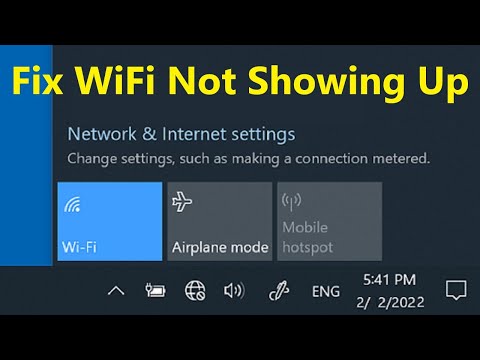
By Howtosolveit How to Fix WiFi Not Showing Up on Windows 10 - Howtosolveit by Howtosolveit
7 Ways to Fix a Computer That Can't Find or Connect to Wifi Windows 10 Laptops & Desktops

By Ask A Computer Geek 7 Ways to Fix a Computer That Can't Find or Connect to Wifi Windows 10 Laptops & Desktops by Ask A Computer Geek
All But My WiFi Network Not Appeared Solved 2020

By Simplify All But My WiFi Network Not Appeared Solved 2020 by Simplify

Title: Memperbaiki WiFi yang Tidak Muncul di Pengaturan Windows 11 Memperbaiki WiFi yang Hilang
Channel: Sandeep Singh
Memperbaiki WiFi yang Tidak Muncul di Pengaturan Windows 11 Memperbaiki WiFi yang Hilang by Sandeep Singh
Wifi Not Found
Laptop WiFi Vanished? Find It NOW!
It’s a scenario that can instantly transform a productive day into a frustrating one: your laptop, once flawlessly connected to the digital world via WiFi, suddenly loses its signal. The little bars, the familiar symbol of connectivity, are gone, replaced by silence and the ominous feeling of isolation. We understand your frustration. We’ve been there. And, most importantly, we know how to get you back online. This comprehensive guide is designed to systematically troubleshoot and resolve the "Laptop WiFi Vanished" conundrum, providing you with the knowledge and solutions to regain your connection quickly and efficiently. Consider this your personal tech-savvy guide to reclaiming your online life.
Understanding the Root Cause: Deconstructing WiFi Connectivity
Before we dive into solutions, it’s helpful to understand the layers involved in your laptop's WiFi functionality. These components work in concert, and a problem in any one of them can lead to the dreaded WiFi vanishing act.
- The Wireless Network Adapter: This is the physical hardware inside your laptop. It’s responsible for sending and receiving radio waves, allowing your laptop to communicate with your router.
- The Router: This is the central hub of your home network, receiving the internet signal from your internet service provider (ISP) and distributing it wirelessly to your devices.
- The Operating System (OS): Your computer's operating system, whether it be Windows, macOS, or another system, manages the network adapter and handles the software that allows your laptop to find and connect to WiFi networks.
- The Driver: This is a software program that allows your OS to communicate with your network adapter. Think of it as a translator between the hardware and the software.
- The Security Settings: Both on your router and your laptop, security protocols like WPA2 or WPA3 and passwords are in place to protect your network. Incorrect settings can prevent your laptop from connecting.
A breakdown in any of these areas can cause your laptop's WiFi to disappear.
Step-by-Step Troubleshooting: Reigning in Your WiFi
Now, let's systematically diagnose the problem and implement the fixes. We'll work through the most common causes first, moving to more advanced troubleshooting if necessary.
1. The Obvious First: A Quick Reset
This is often the quickest and easiest solution, and it addresses a surprising number of problems.
- Restart your laptop: A simple restart can clear temporary glitches in your operating system or network adapter.
- Restart your router: Unplug your router from its power source for at least 30 seconds. Plug it back in and wait for it to fully boot up (usually a few minutes).
2. Hardware Checks:
Sometimes, the issue is a physical one.
- Check the WiFi switch: Many laptops have a dedicated physical switch or a function key (often a key with an antenna symbol) to enable or disable WiFi. Ensure this switch is in the "on" position.
- Examine the physical connection: If you've recently moved your laptop, check to ensure that the WiFi antenna is not plugged into the network adapter.
3. Software Diagnosis and Repair: Windows Users Edition
If the hardware is functioning correctly, it’s time to move to the software side.
- Network Troubleshooter: Windows has a built-in troubleshooter specifically designed for network problems. To access it:
- Type "network troubleshooter" into the Windows search bar and select it.
- Follow the on-screen instructions. This utility will automatically diagnose and attempt to fix common WiFi issues.
- Check the Network Adapter:
- Open Device Manager (search for "Device Manager" in the Windows search bar).
- Expand "Network adapters."
- Look for your wireless network adapter (e.g., "Intel Wireless-AC 9560").
- Ensure there is no yellow exclamation mark or red "X" next to it.
- If there's an error:
- Right-click on the adapter and select "Update driver." Choose "Search automatically for drivers."
- If the update fails, try uninstalling the adapter (right-click -> Uninstall device). Then, restart your computer. Windows will attempt to reinstall the driver automatically.
- Network Reset: Windows 10 and 11 allow you to reset your network settings to their default configuration. This can resolve numerous connectivity issues.
- Go to Settings > Network & Internet > Status > Network reset.
- Click "Reset now."
- Your computer will restart, and you’ll need to reconnect to your WiFi network.
4. Software Diagnosis and Repair: Mac Users Edition
The macOS experience is similar, but with slight differences in navigation.
- Wi-Fi Menu Bar Icon: The Wi-Fi menu bar icon (the curved bars) provides a wealth of information. Click it to see if Wi-Fi is turned on and if there are any networks available.
- Network Diagnostics: macOS's built-in diagnostics tool can help identify network problems.
- Hold down the "Option" key and click the Wi-Fi icon.
- Choose "Open Wireless Diagnostics."
- Follow the on-screen prompts. This tool can perform various tests and suggest solutions.
- Network Preferences:
- Go to System Preferences (or System Settings in newer macOS versions) > Network.
- Make sure Wi-Fi is listed in the left-hand pane and "Wi-Fi" is set to "On."
- Click "Advanced" to review your network settings, including preferred networks and DNS servers.
- PRAM and SMC Reset (for troubleshooting hardware issues):
- PRAM (Parameter RAM) Reset: Shuffles system settings. Shut down your Mac. Press the power button, and immediately hold down Command + Option + P + R until you hear the startup chime a second time.
- SMC (System Management Controller) Reset (depending on Mac model): Resets low-level hardware functions. Follow Apple's instructions for your specific Mac model online.
5. Router Configuration: The Gateway to Your Internet
Your router is the crucial link between your laptop and the internet.
- Check the Router’s Status Lights: Examine the status lights on your router. A solid internet light indicates that the router is receiving an internet signal. A blinking light often suggests a problem.
- Router Compatibility and Channel Issues: Ensure your router supports the WiFi standards your laptop uses (e.g., 802.11ac or 802.11ax). Also, consider changing the WiFi channel on your router. Some channels are more congested than others, leading to interference. Access your router's configuration page (usually by typing its IP address, such as 192.168.1.1, into your web browser) and change the channel settings. Most routers have an "auto" setting that attempts to choose the least congested channel.
- Wireless Network Security: Double-check the security settings on your router. If you've recently changed your WiFi password, make sure your laptop has the updated password. Also, ensure your router is set to a strong security protocol like WPA2 or WPA3 to prevent external interference.
6. Identify External Interference: Beyond Your Immediate Network
Sometimes, the issue isn’t within your direct network but external factors affecting your WiFi signal.
- Other Wireless Devices: Other devices that use the 2.4 GHz frequency (like microwaves, Bluetooth devices, and older cordless phones) can interfere with your WiFi signal. Try moving your laptop away from these devices. Use the 5 GHz frequency if your router supports it.
- Physical Obstacles: Walls, metal objects, and mirrors can obstruct your WiFi signal. Try moving your laptop closer to the router or repositioning the router for better signal propagation.
7. Advanced Troubleshooting: Exploring Further Depths
If the above steps haven't resolved the issue, we can go deeper.
- Inspect the Wireless Network Adapter Drivers: Sometimes, the problem might be with the hardware components.
- If the issue is not fixed through the basic troubleshooting guide, we recommend that the user seek a professional computer technician for a more in-depth driver inspection and repair.
- Reinstall your Network Adapter Drivers: Sometimes, corrupted or outdated drivers can cause WiFi issues.
- Windows: Open Device Manager, locate the network adapter, uninstall it, and then reinstall it from the manufacturer’s website.
- macOS: Reinstalling the operating system may fix driver issues. However, this is more complex and generally not recommended unless other solutions have failed.
- Check Power Management Settings: Occasionally, power-saving settings may inadvertently disable the wireless adapter.
- Windows: In Device Manager, right-click on your wireless adapter, select Properties, and go to the Power Management tab. Uncheck "Allow the computer to turn off this device to save power."
8. The Ultimate Solution: Contacting Professional Support
If all else fails, it is time to call for expert assistance.
- Contact Your Internet Service Provider (ISP): They can check for outages in your area or assess the connectivity on their end.
- Consult a Computer Technician: A qualified technician can diagnose hardware problems or offer further troubleshooting.
Conclusion: Reclaiming Your Digital Life
L
