driver wifi laptop hp elitebook 8460p

Title: Solusi Hp Elitebook 8460p Wifi Off Tidak Bisa ON. Bukan driver, bukan Software
Channel: Kanal Hilyacom
Solusi Hp Elitebook 8460p Wifi Off Tidak Bisa ON. Bukan driver, bukan Software by Kanal Hilyacom
HP Elitebook 8460p Driver WiFi: The SHOCKING Fix You NEED!
HP Elitebook 8460p WiFi Woes? Prepare for a Revelation!
Navigating the digital landscape with a sluggish or non-existent Wi-Fi connection can be utterly maddening. Indeed, many of us rely on it daily. If you're an owner of the venerable HP Elitebook 8460p, you might have wrestled with this very issue. The good news? There's a solution. The even better news? It might not be what you expect!
The Frustration is Real: Recognizing Your WiFi Problem
First things first: let's acknowledge the struggle. Are you staring at a weak signal, intermittent dropouts, or a complete lack of connection? Also, how long have you had your HP Elitebook 8460p? These are common symptoms. Consequently, you're likely experiencing driver-related issues. It can be incredibly frustrating when your trusty laptop refuses to cooperate. You’re not alone, however. Many Elitebook 8460p users experience this. Moreover, the frustration compounds when you need to connect instantly.
Digging Deeper: Why Your WiFi Might Be Acting Up
Now, let's uncover the potential culprits. Your HP Elitebook 8460p is a sturdy machine. However, its wireless adapter needs the correct drivers to function appropriately. Consequently, outdated drivers are often the primary villains. These old drivers can cause compatibility problems. Therefore, your laptop might not recognize your network. Other issues could arise, of course. These include corrupted driver files, system conflicts, or even faulty hardware. In essence, several factors may be at play.
Unmasking the Fix: A Surprisingly Simple Solution
Are you ready for the shocking fix? It's often far simpler than you imagine! The solution frequently boils down to one crucial step: updating your WiFi drivers. Download the correct driver for your specific operating system. You can do this from the HP support website. Afterward, install the new driver. This simple act can resolve most connectivity problems.
Step-by-Step: Guiding You Through the Driver Update Process
To begin, find your laptop's model number, which is essential. Then, go to the official HP support website. Next, search for drivers for your HP Elitebook 8460p. Select your operating system. Then, locate the WiFi driver. Download it and then run the installation file. In conclusion, follow the on-screen instructions. Finally, restart your laptop. In other words, it's quite straightforward!
Beyond the Basics: Troubleshooting Advanced WiFi Issues
Maybe updating the driver alone doesn't solve everything. That's okay! Occasionally, more advanced troubleshooting is necessary. Check that your WiFi adapter is enabled in the device manager. Also, ensure your WiFi switch is turned on. Check your router's settings. Moreover, consider resetting your network configuration. In doing so, you can often eliminate a number of potential problems.
The Power of Connection: Why a Working WiFi Matters
Think about all the things you do online. From essential work tasks to leisurely entertainment, a stable WiFi connection is essential. Because of this, a functioning WiFi is vital for productivity and communication. Furthermore, access to information is a fundamental aspect of modern life. In short, a good internet connection empowers you.
Preventive Measures: Keeping Your WiFi Running Smoothly
Naturally, prevention is key. Regularly check for driver updates. Make sure your network is secure. Also, keep your operating system updated. Consider using a reliable antivirus program. In this way, you can reduce the threat of future issues. By doing this, your wireless connection should remain stable.
The Final Verdict: Reclaiming Your Online Experience
In conclusion, don’t let WiFi problems cripple your HP Elitebook 8460p experience! Updating your drivers is a straightforward first step. Furthermore, it often resolves the most common issues. Armed with this knowledge, you can conquer WiFi frustrations. Consequently, you'll reclaim the freedom and ease of a seamless online experience. Now, go forth and enjoy the internet!
AC WiFi Laptop: Blazing-Fast Speeds, Unstoppable Performance!HP Elitebook 8460p Driver WiFi: The SHOCKING Fix You NEED!
Alright, folks, let's talk about a true tech survivor: the HP Elitebook 8460p. This rugged, reliable laptop has been a workhorse for years, and even today, many of us still swear by it. But let's be honest, one of the most common headaches with this old friend? That darn WiFi driver! We've all been there: staring at the screen, frantically clicking icons, and generally feeling like we're wrestling a grumpy gremlin. Fear not, because we're diving deep to uncover the SHOCKING fix you absolutely need to get your Elitebook back online and kicking!
1. The WiFi Woes of Years Gone By: Why the 8460p Still Matters
First things first, why are we even bothering with the 8460p in the modern age? Well, because it’s a testament to solid engineering. This beast of a machine can handle daily tasks, email, browsing, and even some light work. Plus, it's often found for a steal! It's like that trusty old car that keeps chugging along. The WiFi problem, unfortunately, is a bit like a sputtering engine – easily fixable, but annoying as heck! This guide is for anyone who's inherited one, found a bargain, or just refuses to let go of their trusty companion. We're going to get it connected, plain and simple.
2. Unmasking the Culprit: Decoding the WiFi Driver Mystery
The root of the problem, as with many legacy laptops, often lies in driver compatibility. Windows updates, or a fresh operating system install, can sometimes stumble on the correct drivers for the 8460p's built-in WiFi adapter. It's like trying to fit a square peg into a round hole! The laptop may see WiFi networks, but struggle to connect, or simply show a dreaded "no networks found" message. Identifying the exact chipset of your WiFi adapter is the first step, which typically involves a quick peek under the hood in the Device Manager. Don’t worry, it's less scary than it sounds!
3. Device Manager: Your Digital Detective's Toolkit
The Device Manager is your primary weapon in this battle. Think of it as your laptop's internal diagnostics system. To access it, right-click on the Start button (or press the Windows key + X), and select "Device Manager." Expand the "Network adapters" section. You should see your WiFi adapter listed there. If it has a yellow exclamation mark, or a red cross, you're in the right place. That's your signal that something's amiss.
4. Driver Roulette: The Search for the Holy Grail
This is where the fun (or frustration, depending on your luck) begins! You have two main routes to finding the correct driver:
- The Automatic Route: Windows often thinks it knows best. Right-click on your WiFi adapter in Device Manager and select "Update driver." Let Windows search automatically. Cross your fingers. Sometimes, this actually works!
- The Manual Route: The HP Website Deep Dive: If the automatic method fails, it's time to head to HP’s website. Go to their support section and search for drivers for the Elitebook 8460p. You'll likely need to specify your operating system (Windows 7, 8, or even 10 or 11, if you've upgraded). Download the appropriate driver package.
5. Diving into the HP Drivers Download: A step-by-step guide
Navigating the HP website can seem daunting, but we'll simplify it.
- Visit the HP Support Site: Search for HP Support or go directly to their driver download page.
- Enter Your Laptop Model: Type "HP Elitebook 8460p" in the search bar.
- Operating System Selection: Choose your operating system (Windows 7, Windows 10, etc.). Be sure to pick the correct version (32-bit or 64-bit).
- Filter by "Driver-Network": Look for a "Driver-Network" category to narrow your search.
- Download the WiFi Driver: Locate and download the appropriate Wireless LAN driver.
- Run the Installer: Double-click the downloaded file to run the driver installer. Follow on-screen prompts.
6. The Hidden Treasure: Identifying Your Specific WiFi Adapter
Here's where things can get tricky. HP may have offered the 8460p with different WiFi adapters. You need to pinpoint your specific model. Look at the sticker on the bottom of your laptop, use the Device Manager to check the name of the device, or use a system information tool. Knowing the exact name (e.g., Intel Centrino Advanced-N 6205) is crucial for selecting the right driver.
7. The Driver Dance: Troubleshooting Installation Issues
Sometimes, the driver installation won't go smoothly. Here's how to troubleshoot:
- Compatibility Mode: Right-click the installer and choose "Properties." Go to the "Compatibility" tab and try running the installer in compatibility mode for an older version of Windows (e.g. Windows 7 or Windows Vista).
- Administrator Privileges: Make sure you're running the installer as an administrator (right-click the setup file and choose "Run as administrator").
- Restart and Retry: After each installation attempt, restart your laptop.
- Uninstall Then Reinstall: If initial installation fails, uninstall the faulty driver from the Device Manager first, and then attempt a fresh reinstall.
8. The "No Networks Found" Blues: Fixing Connection Snags
Even after a successful driver installation, you might still encounter problems. Here's how to tackle the "no networks found" issue:
- Check the Wireless Switch: The 8460p often has a physical switch (usually on the side or front) to enable/disable WiFi. Make sure it's switched on. Yes, it sounds silly, but it happens!
- Wireless Network Adapters: Enable It: In Device Manager, confirm your wireless adapter is enabled. If it's disabled, right-click and select "Enable device."
- Antenna Issues: Make sure the WiFi antenna cables are connected internally. If you're comfortable opening up the laptop, check to ensure that the antenna cables are connected to the WiFi card.
- Network Settings Reset: Sometimes, resetting your network settings can fix lingering issues. In Windows settings, look for network reset options.
9. The Power of Simplicity: The "If All Else Fails" Solution
Let's be brutally honest. Sometimes, no matter what we try, the built-in WiFi adapter just won't cooperate. Here's a simple, inexpensive, and often overlooked solution:
- USB WiFi Adapter: A USB WiFi adapter is a small, plug-and-play device that provides instant WiFi connectivity. They're cheap, readily available, and often work better than the older internal adapters. It’s like using a modern engine in a classic car.
10. Windows 10/11 Considerations: Adapting to the Modern World
If you've bravely upgraded your 8460p to Windows 10 or 11, you might face additional challenges. These operating systems are less forgiving with legacy hardware. However:
- Driver Compatibility is Key: Make sure you use drivers compatible with your operating system.
- Troubleshooting Techniques Remain Relevant: The overall troubleshooting steps will be similar, but you might need to explore more advanced driver settings or compatibility modes.
11. Advanced Driver Tweaks: Unlocking Hidden Potential
For tech-savvy users, there are advanced driver settings you can tweak:
- Power Management: In Device Manager, open your wireless adapter properties, go to the "Power Management" tab, and uncheck "Allow the computer to turn off this device to save power." This usually assures a stable connection.
- Channel Selection: Depending on your router, you may need to manually select a WiFi channel to optimize performance. This can be done in the adapter's advanced settings.
12. Security First: Keeping Your Connection Safe
Don't forget about security! Always:
- Use WPA2 or WPA3 Encryption: Ensure your router is configured with robust security protocols.
- Update Your Router Firmware: Regularly update your router's firmware to patch security vulnerabilities.
13. Common Mistakes: Learn from Others' Blunders
We’ve all made these mistakes. Let's learn from them:
- Downloading the Wrong Driver: Double-check the model and operating system before you download.
- Ignoring the Physical Switch: Seriously, check the switch! We’ve all missed it at some point.
- Giving Up Too Soon: Troubleshooting can be tedious, but don't give up! Usually, the problem is addressable.
14. Extending the Lifespan: Beyond WiFi Repair
Getting the WiFi fixed is just the start. Here’s how to keep your 8460p a reliable companion:
- Regular Maintenance: Clean out dust, update its software, and backup your data.
- **Battery Considerations
Perbaikan masalah Nirkabel HP Elitebook 8440p dengan reset bios
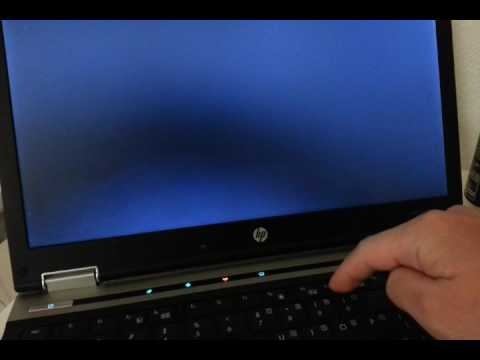
By Tree&Saw Business Perbaikan masalah Nirkabel HP Elitebook 8440p dengan reset bios by Tree&Saw Business
HP EliteBook 8460 8460P WiFi Card Replacement - Disassembly Take Apart

By LaptopRepairHelp HP EliteBook 8460 8460P WiFi Card Replacement - Disassembly Take Apart by LaptopRepairHelp
Wifi Not Working Problem HP Elite Book Series Laptop ProblemmacniteshkeyboardtricksWifiHP

By Mac Nitesh Wifi Not Working Problem HP Elite Book Series Laptop ProblemmacniteshkeyboardtricksWifiHP by Mac Nitesh

Title: Unduh & perbarui driver Notebook HP EliteBook 8460p untuk Windows 87Vista 2872023 Diperbarui
Channel: HowtoFixDllExeErrors
Unduh & perbarui driver Notebook HP EliteBook 8460p untuk Windows 87Vista 2872023 Diperbarui by HowtoFixDllExeErrors
Working With Laptop
HP EliteBook 8460p Driver WiFi: Unveiling the Secret to Seamless Connectivity
The HP EliteBook 8460p. A stalwart of the professional world, known for its rugged build, dependable performance, and enduring legacy. Many still rely on this workhorse, and rightfully so. Yet, one of the most common frustrations encountered by users has been the seemingly elusive quest for stable and reliable WiFi connectivity. The symptoms are familiar: intermittent dropouts, painfully slow speeds, and the maddening message of "no internet access." This guide cuts through the noise, offering a definitive solution to conquer your WiFi woes and ensure your HP EliteBook 8460p performs at its peak potential. We will walk you through the intricacies of driver management, demystifying the process and empowering you with the knowledge to achieve consistently strong WiFi signals.
Diagnosing the WiFi Dilemma: Identifying the Root Cause
Before diving into solutions, let's briefly address the fundamental reasons behind WiFi connectivity problems on the HP EliteBook 8460p. While hardware failures are a possibility, driver-related issues are the primary culprit. Specifically, outdated, corrupted, or incompatible WiFi network adapter drivers contribute significantly to these frustrating performance issues. Symptoms often manifest as:
- Frequent Disconnections: The WiFi connection abruptly cuts out, forcing you to reconnect.
- Slow Internet Speeds: Downloads, uploads, and browsing feel agonizingly sluggish.
- Limited Range: The WiFi signal struggles to reach further than a few feet from the router.
- Error Messages: You may encounter cryptic error messages indicating problems with the network adapter.
- Inability to Connect: The laptop simply fails to detect or connect to available WiFi networks.
Properly identifying the issue allows us to develop effective, precise solutions. The following sections provide step-by-step solutions that should resolve WiFi problems.
Pinpointing Your Wireless Network Adapter: The Key to Driver Success
The HP EliteBook 8460p was offered with various wireless network adapters. Knowing the exact model installed in your machine is critical to installing the correct driver. To determine the adapter model:
- Access Device Manager: Right-click the Windows Start button and select "Device Manager".
- Expand Network Adapters: Click the arrow next to "Network adapters" to expand the list.
- Identify Your Adapter: Look for entries with names like "Intel Centrino Advanced-N 6205", "Broadcom 802.11n Network Adapter", or similar. The exact name will reveal the manufacturer and model. Take note of this name, as it's crucial for driver selection.
By knowing the exact adapter model, you'll avoid installing the wrong driver, which can lead to compatibility issues and perpetuation of your WiFi difficulties.
The Gold Standard: Downloading the Correct WiFi Driver from HP's Website
The manufacturer of a product is the absolute best place to find the correct drivers. Downloading drivers from HP's official website is the safest and most reliable method. Here's how:
- Navigate to the HP Support Website: Visit the official HP Support website (https://support.hp.com/).
- Enter Your Product Information: Type in "HP EliteBook 8460p" into the search bar and select your specific model from the results. The Serial Number can also be used to identify your specific model.
- Go to Software and Drivers: Look for a section labelled "Software and Drivers" or something similar.
- Select Your Operating System: Choose the operating system installed on your laptop. If you're not sure, it's likely Windows 7, Windows 10, or a later version.
- Find the Wireless Driver: Locate the driver for your wireless network adapter. It will be labelled with your adapter model (e.g., "Intel Wireless LAN Driver").
- Download and Install: Download the driver and follow the on-screen instructions to install it. Restart your laptop after installation is complete.
This process ensures you're installing the latest, most compatible driver for your WiFi adapter, maximizing the likelihood of resolving connectivity issues. This is the most common solution when dealing with the HP EliteBook 8460p driver WiFi.
Alternative: Driver Updates via Windows Update
Windows Update can sometimes provide updated or updated drivers for your WiFi adapter. While less reliable than downloading drivers directly from HP, this method is worth a try.
- Open Windows Update: Navigate to "Settings" then "Update & Security."
- Check for Updates: Click "Check for updates." Windows will search for and install available updates, including potential driver updates.
- Review Optional Updates: Sometimes, driver updates are listed under "Optional updates." Expand this section and check for relevant driver updates.
- Restart Your Laptop: After installing any driver updates, restart your laptop.
Although Windows Update is a convenient option, it shouldn't be your primary method for driver acquisition. Proceed with caution and prioritize the HP Support website.
Advanced Troubleshooting: Driver Reinstallation and Rollback
If simply installing a new driver doesn't solve the problem, or the issue is still apparent, try driver reinstallation or rollback:
Reinstalling the Driver:
- Uninstall the Existing Driver: In Device Manager (as described above), right-click your WiFi adapter and select "Uninstall device." Check the box that says "Attempt to remove the driver for this device" before confirming.
- Restart Your Laptop: Windows will attempt to reinstall the driver automatically upon restarting. If this doesn't happen, install the correct driver as described in the section "The Golden Standard: Downloading the Correct WiFi Driver from HP's Website."
Rolling Back the Driver:
If the WiFi issues started after a recent driver update, rolling back to a previous driver version might help.
- Access Driver Properties: In Device Manager, right-click your WiFi adapter and select "Properties."
- Go to Driver Tab: Click on the "Driver" tab.
- Roll Back Driver (if available): If the "Roll Back Driver" button is active, click it and follow the prompts. This will revert to the previously installed driver.
- Restart Your Laptop: Restart your laptop after the rollback is complete.
These advanced troubleshooting steps tackle more complex issues and provide a pathway to recovery.
Optimizing WiFi Performance: Beyond Driver Updates
While driver updates are critical, you can further optimize your WiFi performance and troubleshoot other potential issues:
- Router Proximity: Ensure you're within reasonable proximity to your WiFi router. Walls and other obstructions can weaken the signal.
- Router Placement: Position your router in a central location and away from interference sources such as microwaves or Bluetooth devices.
- Router Firmware Updates: Check for and install the latest firmware updates for your router. Outdated firmware can lead to compatibility problems.
- Channel Selection: Experiment with different WiFi channels on your router. Using the Channel Scanner feature in modern routers can determine the least congested channel, ensuring better performance.
- Update Network Adapter Power Settings: Device Manager -> Network adapters-> Right Click on your WiFi adapter-> Properties -> Power Management -> Uncheck "Allow the computer to turn off this device to save power". This ensures your WiFi adapter always has power to function.
- Consider a USB WiFi Adapter: As a last resort, if your built-in WiFi adapter has persistent problems, a USB WiFi adapter can provide a reliable alternative.
By implementing these additional optimizations, you'll maximize your WiFi speeds and signal strength.
Troubleshooting Tips and Common Pitfalls
- Verify Wireless Services: Ensure the Wireless LAN AutoConfig service is running. Type "services.msc" in the Windows search bar, find the service, and verify it is running and set to automatic startup.
- Check for Hardware Problems: While driver issues are most common, a failing WiFi adapter is possible. Consider having a technician diagnose the hardware if software solutions fail.
- Beware of Third-Party Driver Software: Avoid using third-party driver update utilities, as they can sometimes introduce incompatible drivers or install malicious software. Stick to HP's website or Windows Update.
- Factory Reset as a Last Resort: If all other troubleshooting steps fail, consider performing a factory reset of your laptop. Back up your data, as this will erase everything on your hard drive.
By adhering to these tips and avoiding common pitfalls, you'll be well-equipped to conquer WiFi connectivity challenges.
Conclusion: Unleashing the Full Potential of Your HP EliteBook 8460p
The HP EliteBook 8460p is a robust and dependable device with excellent potential, especially if you're looking for a solid, reliable laptop on a budget. By following the steps outlined in this comprehensive guide, you can confidently conquer any WiFi hurdles that may arise. We trust that through effective driver management and optimization techniques, you'll be able to restore seamless WiFi connectivity to your HP EliteBook 8460p, allowing you to focus on what matters most – your work, your studies, or your entertainment. With a properly functioning WiFi connection, your EliteBook 8460p will continue to serve you for years to come, reliably connecting you to the world.
